How to Fix a File to Match Exact Upload Requirements
One pass instead of three tools: the rules go in as text, the file comes out re-checked against them, and 'ready' appears only if every required rule passes.
Why one tool for everything
A portal’s rules rarely concern just one thing. “JPEG, 200 × 230 pixels, 20 to 50 KB” is three constraints, and fixing them one at a time breaks the others: resizing changes the size, compressing changes the quality. Fix Upload File takes them together.
How it works
- Read the rules. Paste the text, or add a screenshot of it (the text is read on your device; screenshots can be misread, so check the numbers). It shows what it understood and what it didn’t, and lets you correct it. Only numbers it is sure about become rules.
- Compare. It shows your file against the requirements.
- Fix. It crops or fits to the exact shape, then searches for the highest quality that satisfies the size range, aiming a safe margin below a lone maximum. It doesn’t re-compress a JPEG that already passes, writes a DPI if one is required, and warns if the quality falls below 60/100.
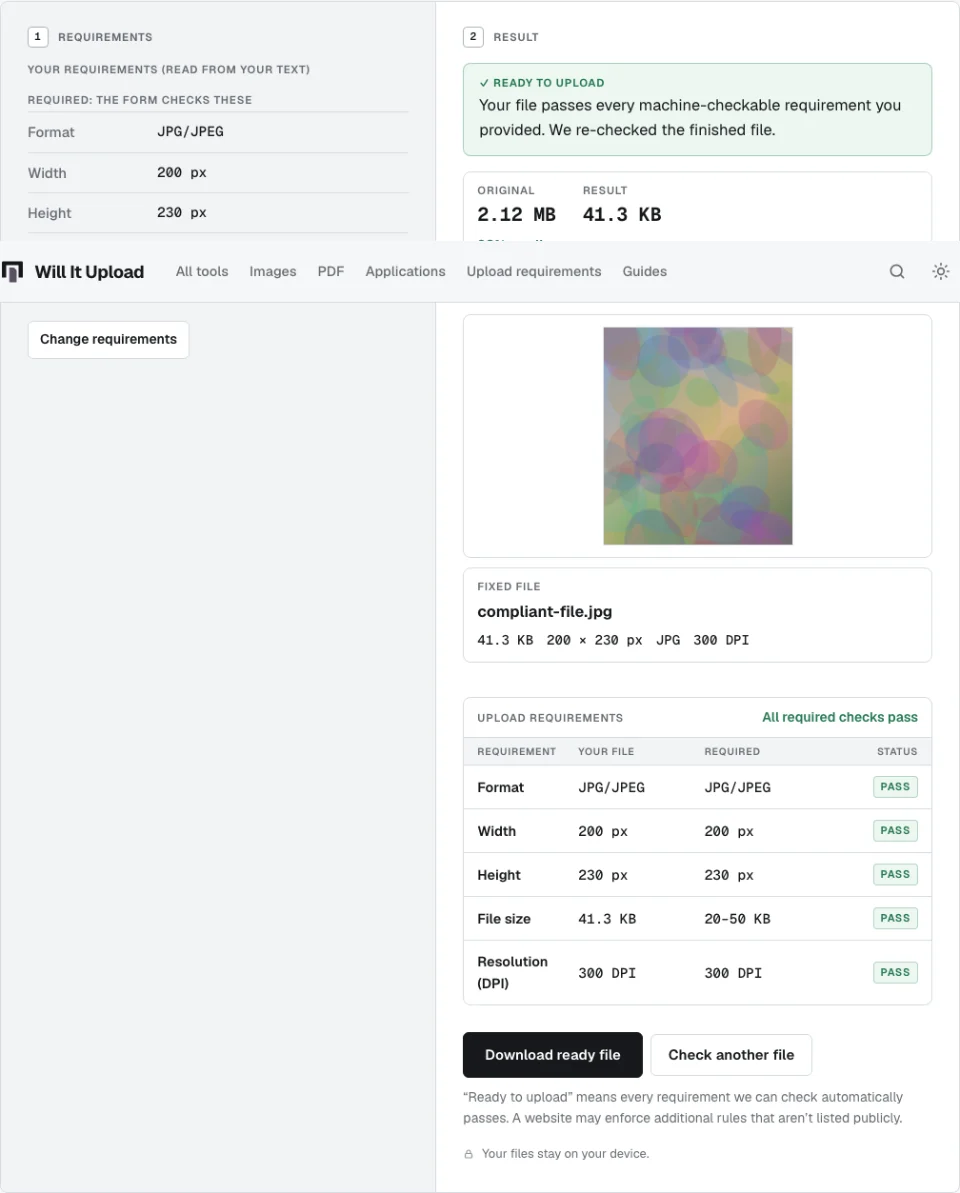
- Verify. It re-reads the finished file and runs it through the same rules.
What “ready to upload” means
The tool says “ready to upload” only when every required, machine-checkable rule passes on the finished file. That means “meets the requirements you provided”, not “the portal will accept it”. Some portals enforce rules they don’t list. Rules a computer can’t judge (capital letters, a clear face, ink colour) appear in a “check yourself” list.
Examples that work
- “Signature must be JPG/JPEG, 140 × 60 px and 10–20 KB.” Format, width, height and size are filled in for you to confirm.
- “Photo: JPEG, 200 x 230 pixels, between 20 KB and 50 KB.” A photo cropped to shape and compressed inside the range.
- “DPI: 300” and “resolution: 300” are both read.
Where it asks or stops
- A lone size such as “50 KB” is read as a maximum and flagged as assumed.
- Two different size ranges (one for a photo, one for a signature) trigger a warning rather than silently using the last.
- Impossible combinations. If the pixel size is fixed and the KB limit is too small for the content, the message says which one couldn’t be met; loosen one rule or ask the portal.
- Images only. For a PDF, use Compress PDF.
If you only want to know whether a file passes, check it first. After downloading, the “did the portal accept it?” question helps us learn when a requirement has changed.