How to Compress an Image to 50KB
To get an image under 50KB, decide the pixel dimensions first and let the quality settle where it must. Lowering quality alone can't shrink a phone photo that far.
Why 50KB is a pixel problem first
50 KB is 50,000 bytes, or 400,000 bits. Divide that by the number of pixels in the picture and you get the bits available per pixel:
| Image size | Pixels | Bits per pixel at 50 KB |
|---|---|---|
| 200 × 230 | 46,000 | 8.7 |
| 600 × 600 | 360,000 | 1.1 |
| 1080 × 1350 | 1,458,000 | 0.27 |
| 4000 × 3000 (a 12 MP phone photo) | 12,000,000 | 0.033 |
As a rule of thumb, a JPEG photo at an ordinary quality setting needs on the order of one to a few bits per pixel. Plain white images and flat graphics need far less. So a 200 × 230 or 600 × 600 picture fits in 50 KB easily, while a full-size phone photo would have to be crushed to a thirtieth of that. No quality slider can do it; the picture has to have fewer pixels.
How to do it
- Open Compress Image and add your picture.
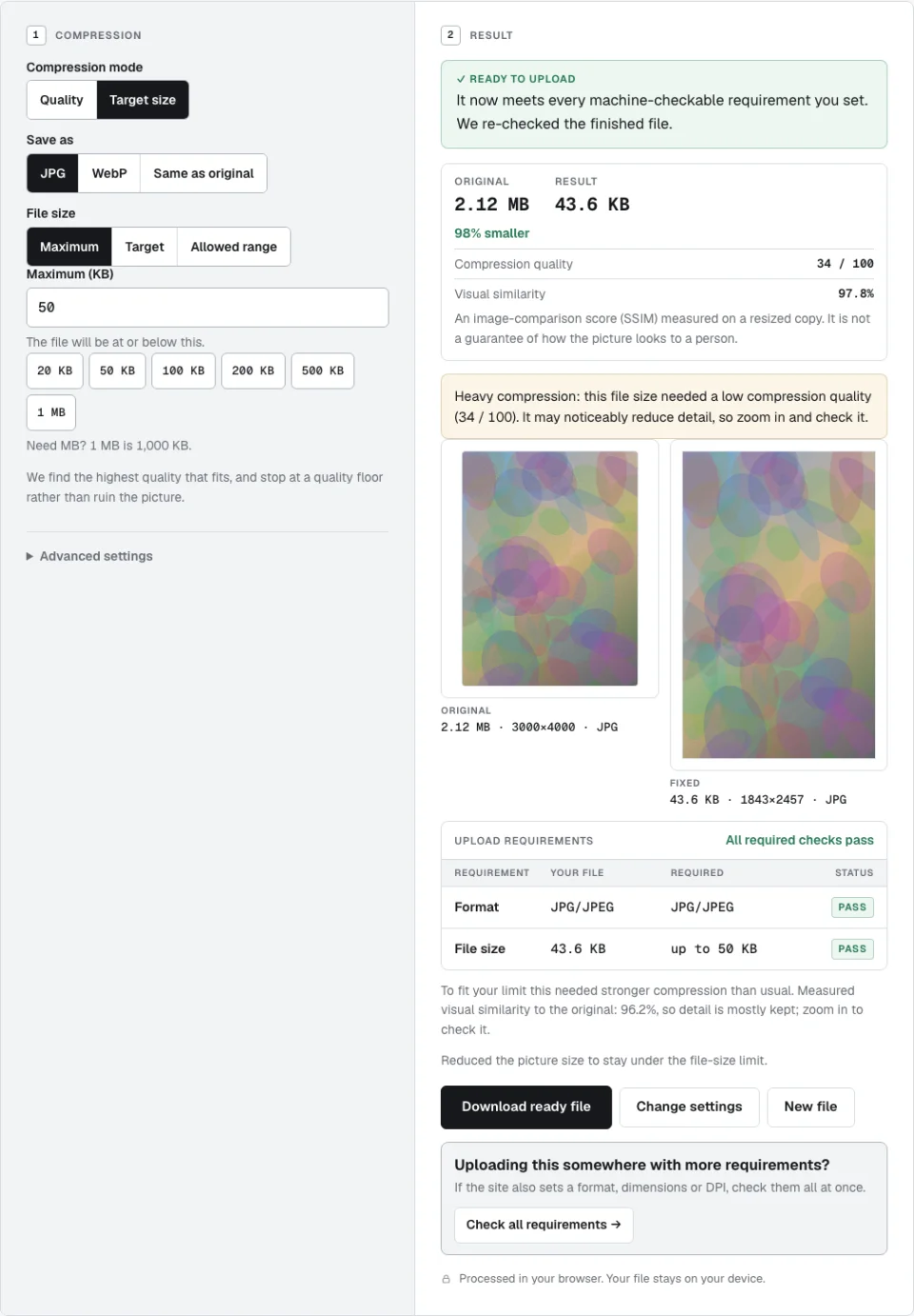
- Choose Target size and set a maximum of 50 KB.
- Leave the pixel size alone first. The tool keeps the highest quality that fits and only reduces the pixels if that isn’t enough.
- Read the result: the new size, the compression quality used, and whether the target was reached.
The result lands just under 50 KB, not far below it. “Maximum 50 KB” is read as at most 50,000 bytes, because portals disagree on whether a kilobyte is 1,000 or 1,024 bytes and the smaller reading is the safe one for a maximum.
What we measured
One generated 3000 × 4000 test image (2.12 MB, soft colour shapes with fine grain, so it contains no one’s photo) went through Compress Image’s Target size mode at a 50 KB maximum with the default settings. We ran it three times in each browser engine, and every run gave the same result.
| Browser engine | Result | Pixels | Quality | Visual similarity |
|---|---|---|---|---|
| Chromium | 43.6 KB | 1843 × 2457 | 34 / 100 | 97.8% |
| Safari’s engine (WebKit) | 44.8 KB | 1132 × 1509 | 39 / 100 | 98.1% |
Both fit under 50 KB, and both needed the tool to cut the pixels: Chromium kept 61% of each side, Safari’s engine about 38%. The two encoders turn the same quality setting into different file sizes, so the tool settled on different pixel sizes. Both results carry a “heavy compression” warning, and in both the tool needed its stronger-compression step, keeping it because the measured similarity to the original stayed above 90%.
The lesson is that what the picture contains, and which browser does the encoding, decide the outcome. A grainy photo is harder to compress than a smooth one, and if the tool stops at its floor and says “Target too aggressive”, shrink the pixels yourself first. Real photos will land differently from a generated one.
If your form also fixes the pixel size (for example 200 × 230), use KB + Dimensions instead. It cuts the picture to that exact shape first, then searches for the best quality that fits.
If the picture looks soft or blocky
- It got smaller in pixels. That is the pixels-first rule at work. If you must keep the original dimensions, turn on “Keep the pixel size” under Advanced. The tool then stops at its quality floor instead of shrinking the picture, and tells you if 50 KB wasn’t reachable.
- It says the target is too aggressive. The default floors stop before the picture is ruined: JPEG quality 50, at least 55% of the linear size, and never below a 400 px long edge. Beyond them the tool tries harder compression once, and keeps it only if the result still measures at least 90% similar to the original. If neither works you can allow lower quality, but look at the result before you submit it.
- It’s a PNG. PNG is lossless, so in this tool only fewer pixels make it smaller. Save as JPG for a bigger saving. Photos in particular are far smaller as JPEG.
- Nothing changed. If your file was already under 50 KB, it comes back exactly as it was.
What “50KB” is usually for
Application photos and signatures are the common case. Those forms usually also specify dimensions and a format, so check all three. The Image Requirement Checker shows which rules your file passes before you try the portal again.